

Shipping protection
Change the widget text and translate it
Open Protection and edit the Content card: title, description and an optional Learn more popup. Say plainly what protection covers and that you review each claim. On Standard and Plus, pick another language and type translations or click Translate. Click Save.
Tell customers what protection covers, in every language your store uses. All the widget’s text is in the Content card on the Protection page.
How do you change the text?
- In the app menu, click Protection and find the Content card.
- Enter a Title (1), up to 50 characters, and a Description (2), up to 200 characters.
- If you want different text while protection is off, tick Show a different description when protection is off (3) and write it.
- Click Save in the save bar.
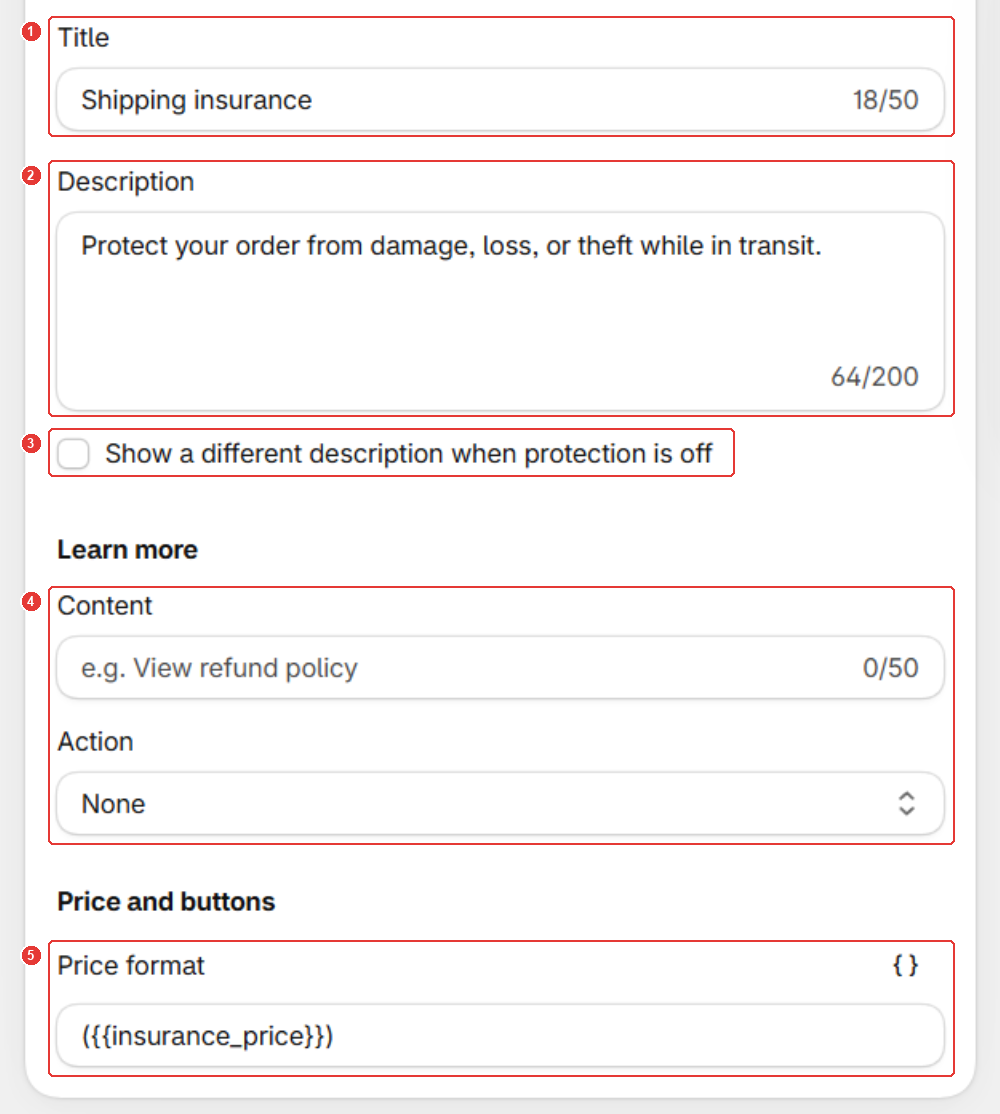
Say what protection covers and that you review each claim. Don’t promise an automatic payout. For example:
Protect your order against loss, theft or damage in transit. If something goes wrong, file a claim and we’ll review it.
How do you add a Learn more popup?
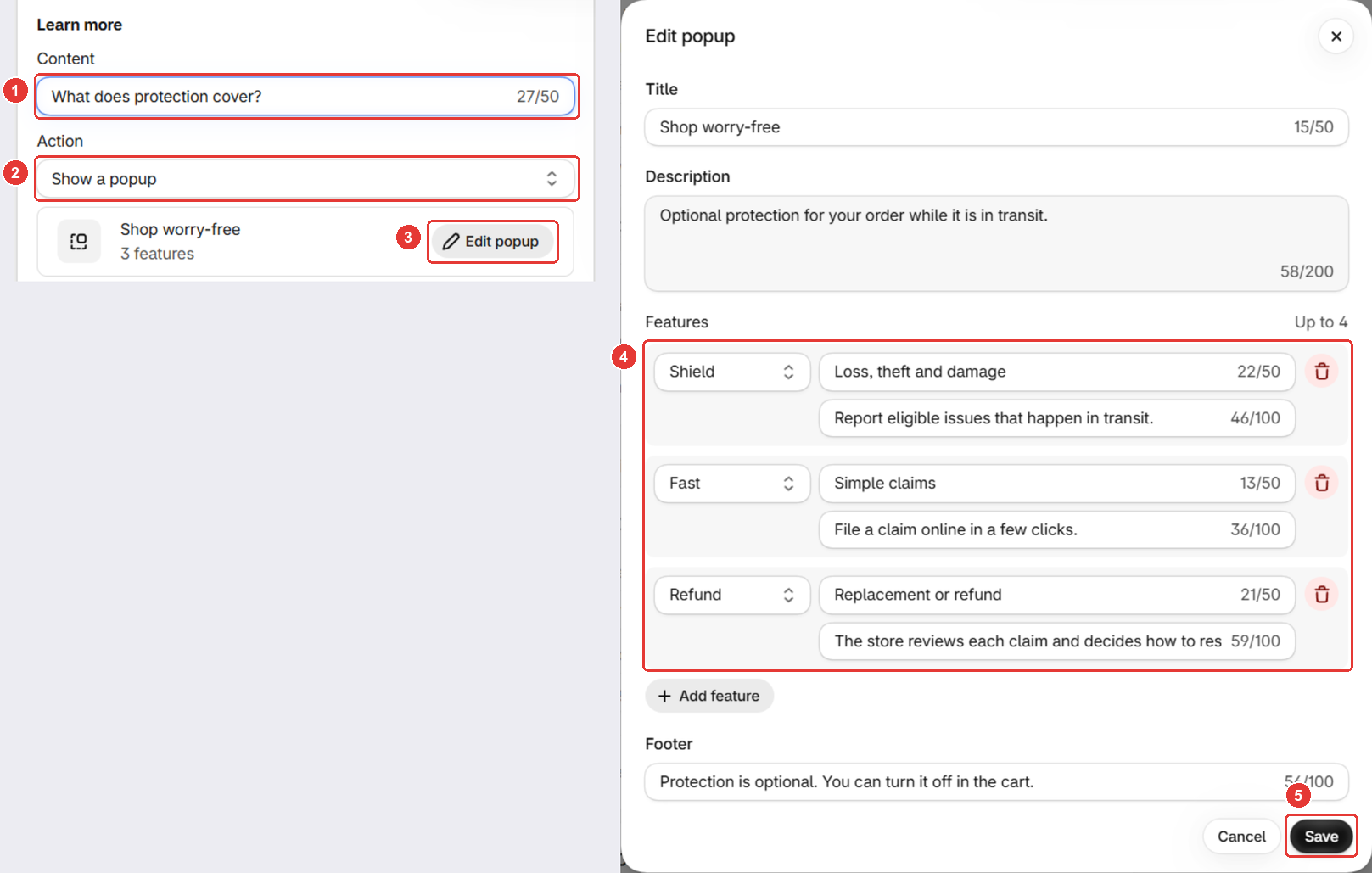
- Type the link text in Content (1), for example “What’s covered?”.
- Set Action to Show a popup (2) and click Edit popup (3).
- Edit the title, description, footer and up to 4 features (4). Change any line that doesn’t match your claim policy.
- Click Save (5) in the window, then Save on the page.
To link to a policy page instead, set Action to Open a URL.
How do you translate the widget?
Needs the Standard or Plus plan. The language bar shows when your store has more than one language.
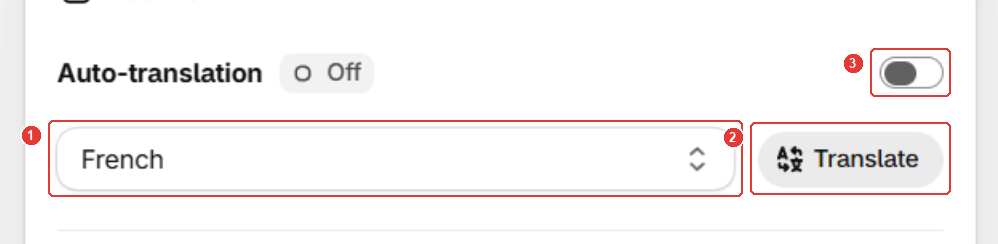
- Pick a language in the language menu (1).
- Type the translations, or click Translate (2) to fill the empty fields.
- To translate on every save, switch on Auto-translation (3).
- Click Save.
Good to know
- Auto-translation replaces your own translations of a field whenever you edit that field in your default language. Leave it off if you translate by hand.
- Price format sets how the fee shows next to the title. Keep the Protection fee variable in it (click
{ }and pick it under Dynamic variables), or the price won’t show. - Button labels for the checkout button layouts are in this card too. See Customize how the widget looks.
- The same text shows in the checkout widget and the thank-you offer. The claim portal has its own text.
Frequently asked questions
Can I keep the word insurance in the widget title?
Shipping insurance is only the starting title, and you can change it. Sam doesn't provide insurance, so pick words that match how you handle claims, such as Shipping protection.
Why do some customers still see my default language?
Translations need the Standard or Plus plan. A field you leave blank shows your default-language text, so fill every field and click Save.
Does the Learn more popup work at checkout?
No. The popup opens in the cart only. At checkout and on the thank-you page, Learn more shows as text or a link.
Still need help?
Our developers answer support themselves. Chat with us or email [email protected].