

Sam Shipping Protection guide · Widgets
Choose the cart widget design
In short
Open Protection Settings and switch to the Design tab. Under Cart Page / Drawer Widget pick a layout (Standard, Minimal, Expanded or Detailed), then open Colors & spacing to set borders, padding and colors. The preview updates live; click Save when it matches your store.
The cart widget appears in the cart page and the cart drawer. Its look is set on the Design tab of Protection Settings.
Step 1: Pick a layout
- Open the Design tab (1).
- Under Cart Page / Drawer Widget, choose a layout (2):
- Standard: text with a toggle switch.
- Minimal: one compact line with a toggle.
- Expanded: a full-width protected checkout button with a link to check out without protection.
- Detailed: an icon and description above the protected checkout button.
- Open Colors & spacing (3) to fine-tune it.
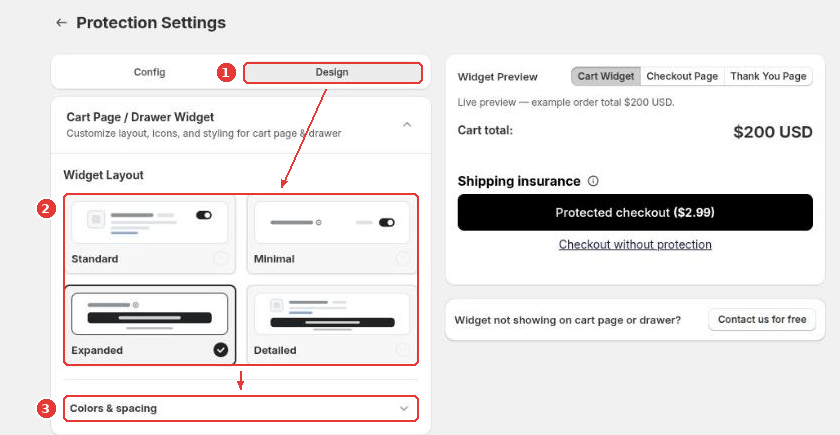
Some layouts and style options need a paid plan. The app shows which ones when you select them.
Step 2: Set colors and spacing
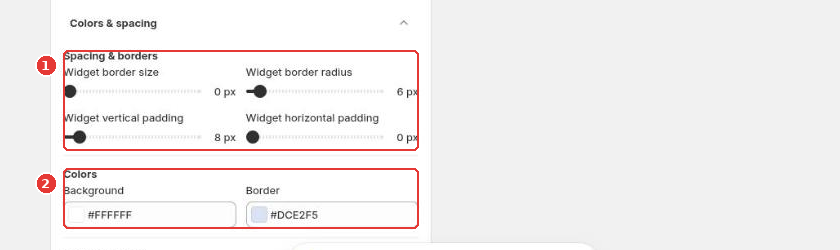
Set the border size, corner radius and padding (1), then the background and border colors (2). Below these you can set the size, weight and color of the protection price.
Step 3: Save and check your store
Click Save in the bar at the top of the page, then add a product to your cart and open the cart drawer to see the widget.
If the widget doesn’t show, check that the app embed is on and that the cart isn’t excluded by your visibility rules. If your theme uses a custom cart drawer, click Contact us for free next to the preview and we will adjust it for you.
Still need help?
Our developers answer support themselves. Chat with us or email [email protected].