

Sam Shipping Protection guide · Troubleshooting
Rename the protection product shown at checkout
In short
Sam adds protection to the cart as a product with the type sam_protect_shipping, named Shipping Insurance by default. In Products, filter by that type, open the product and change its title, image or description. Don't delete it or change its type or price, and keep its status Unlisted or Active.
Shopify can only add a fee to the cart as a product, so Sam creates a protection product when you turn it on. Its title and image are what customers see in the cart, at checkout and on the order, so it is worth matching them to your store, for example “Order Protection” or “Delivery Guarantee”.
Step 1: Find the product
Go to Products (1), filter by Type is sam_protect_shipping (2), and open the product (3). By default it is called Shipping Insurance.

Step 2: Change the title and image
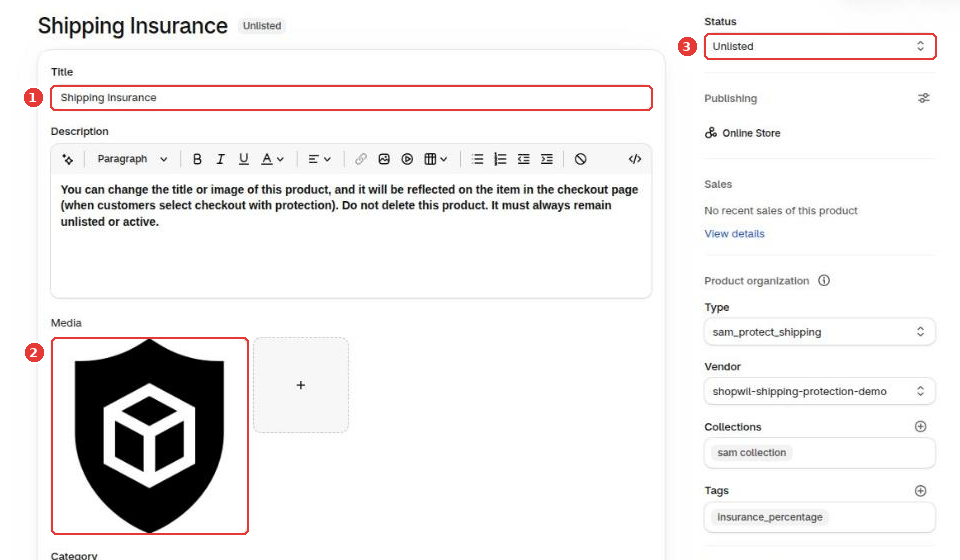
Edit the Title (1) and replace the image under Media (2). Keep the Status (3) as Unlisted so the product stays out of your collections and search but can still be added to orders. Click Save.
What not to change
- Don’t delete the product, or protection can’t be added to orders.
- Don’t change the product type (
sam_protect_shipping): the app uses it to find the product. - Don’t change the price or variants. The app sets the price from your protection settings.
If you call the product “insurance”, make sure your policy matches how you handle claims, since Sam does not underwrite coverage.
Still need help?
Our developers answer support themselves. Chat with us or email [email protected].