

Sam Shipping Protection guide · Claims
Add the claim page to your store
In short
In the theme editor, create a page template (for example "claim"), add the Claim Page app block from Add section > Apps and save. Then create a page in Online Store > Pages that uses this template and add it to your menu. Customers file claims there with their email and order number.
Customers file claims on a page in your own store. The app provides a Claim Page block for your theme. You add it once, and every claim then arrives in the app’s Claims page.
Step 1: Create a page template
- In Shopify admin, go to Online Store and click Edit theme.
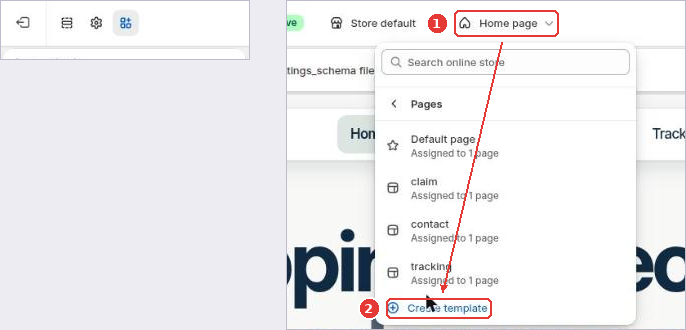
- Open the page selector at the top (1), go to Pages, and click Create template (2).
- Name the template, for example
claim, and base it on the default page.
Step 2: Add the Claim Page block
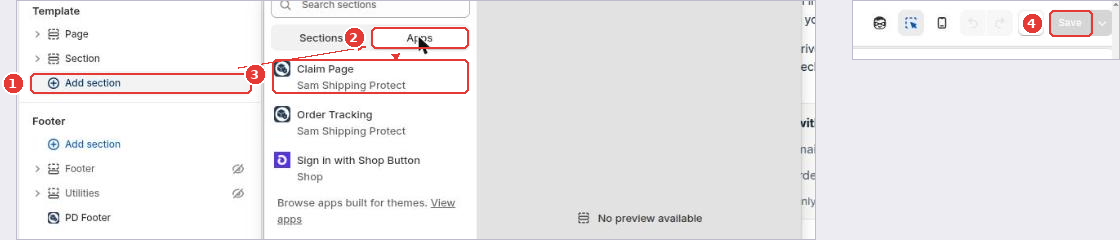
- In the new template, click Add section (1).
- Open the Apps tab (2).
- Choose Claim Page (3).
- Click Save (4).
You can add a short text above the form, for example what customers need and how long you take to reply.
Step 3: Create the page and add it to your menu
- Go to Online Store > Pages and click Add page.
- Give it a title such as “File a claim”, and under Theme template choose the template from step 1. Save.
- Go to Content > Menus, open your main or footer menu, add the page and save.
What customers see
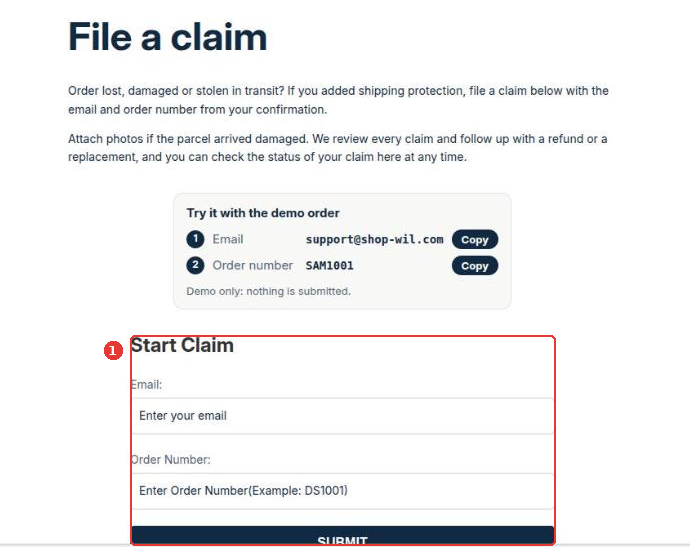
Customers enter the email and order number from their confirmation, then describe the problem and attach photos. The claim appears in Claims in the app with the status Requested.
Next: review and resolve claims.
Still need help?
Our developers answer support themselves. Chat with us or email [email protected].