

Sam Shipping Protection guide · Claims
Review and resolve claims
In short
Open Claims in the app, filter by status and click Action on a claim. Read the customer note and photos, then click Fulfill claim and choose Refund, Refund by store credit or Reorder, enter the amount or items, add a reason and save. Click Cancel to reject a claim.
Every claim lands on the Claims page of the app, whether the customer filed it on your claim page or you created it yourself.
Step 1: Find the claim
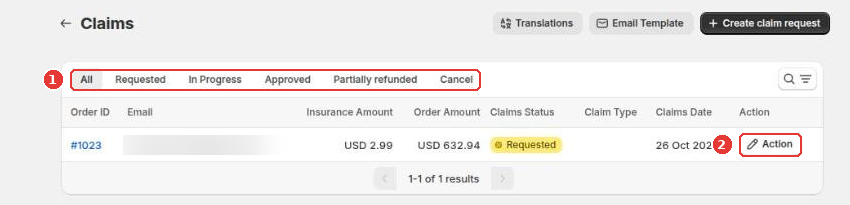
Use the status tabs (1) to show Requested, In Progress, Approved, Partially refunded or Cancel claims, then click Action (2) on the claim you want to handle. A claim moves to In Progress when you open it.
Step 2: Review the claim
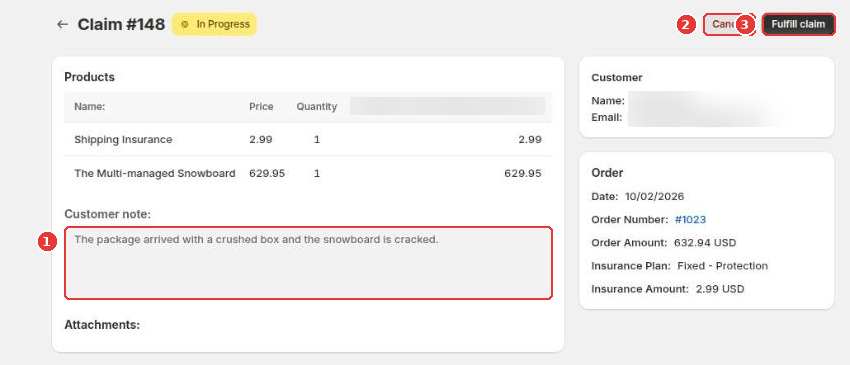
The claim page shows the products, the customer’s note (1), any photos, and the order with its protection plan. Then decide:
- Cancel (2) rejects the claim.
- Fulfill claim (3) resolves it.
Step 3: Resolve it
In the Fulfill claim dialog:
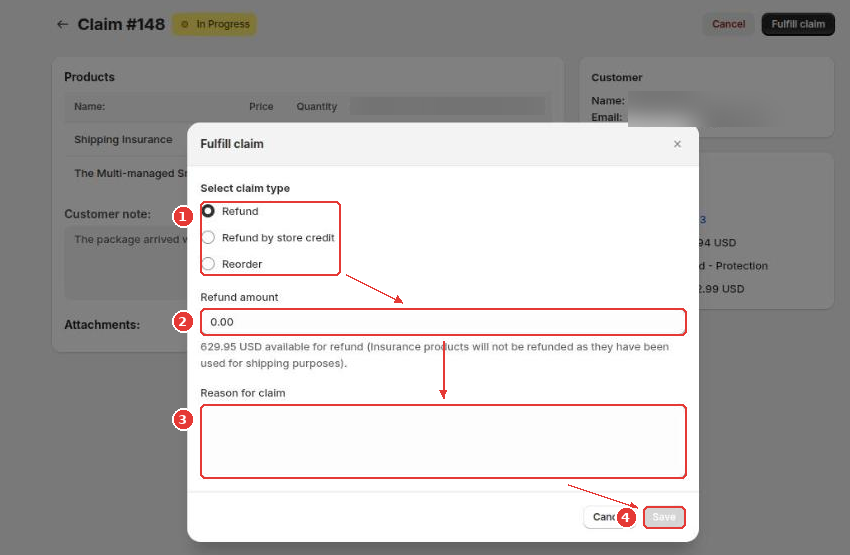
- Choose the claim type (1):
- Refund: a full or partial refund to the original payment method.
- Refund by store credit: Shopify store credit instead of a payment refund.
- Reorder: a new order for the affected items, or the whole order.
- Enter the refund amount (2), or the items to reorder.
- Add the reason for your decision (3).
- Click Save (4).
Create a claim yourself
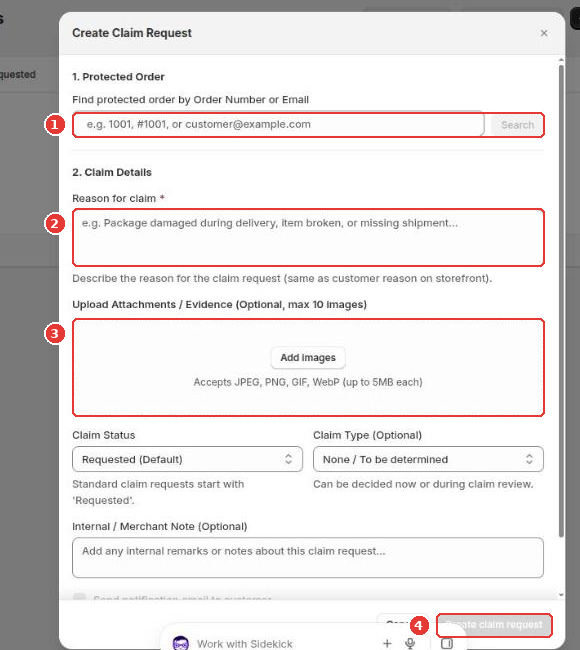
If a customer reaches out by email or chat, click Create claim request on the Claims page. Find the protected order by order number or email (1), describe the problem (2), attach photos if you have them (3) and click Create claim request (4).
Frequently asked questions
Is the protection fee refunded with the claim?
No. The protection item covered the shipment, so the refund is limited to the other items in the order. The dialog shows the amount available for refund.
Can I create a claim for a customer?
Yes. Click Create claim request on the Claims page, find the protected order by order number or email, and enter the reason. This is useful when a customer contacts you by email or chat.
Still need help?
Our developers answer support themselves. Chat with us or email [email protected].