

Sam Shipping Protection guide · Widgets
Offer protection at checkout and on the thank-you page
In short
Turn on the Checkout Page Widget and Thank You Page Widget in Protection Settings > Design, then add the Sam Checkout UI block in Settings > Checkout > Customize. The checkout widget needs Shopify Plus; the thank-you widget works on every plan and needs the Edit orders permission.
Besides the cart, you can offer protection in two more places:
- Checkout page: a toggle under the shipping methods. Shopify allows this only on Shopify Plus stores.
- Thank-you page: an offer after payment for orders placed without protection. Works on every Shopify plan.
Step 1: Turn on and style the widget in the app
- In Protection Settings, open the Design tab and expand Checkout Page Widget (1).
- Switch on Enable widget (2).
- Set the offer style, icon size, border, padding and text tones (3).
- Check the result in the preview (4), then click Save.
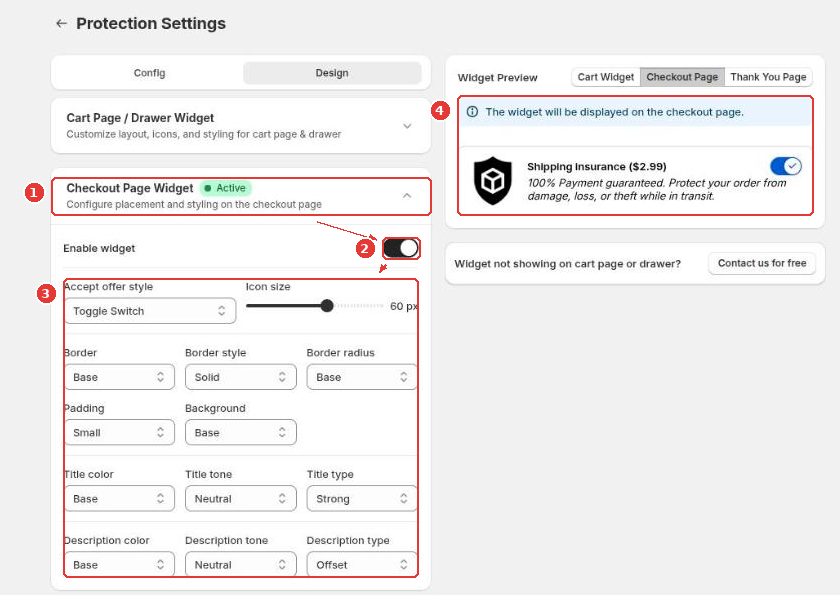
Do the same in Thank You Page Widget for the post-purchase offer.
Step 2: Add the block in the checkout editor
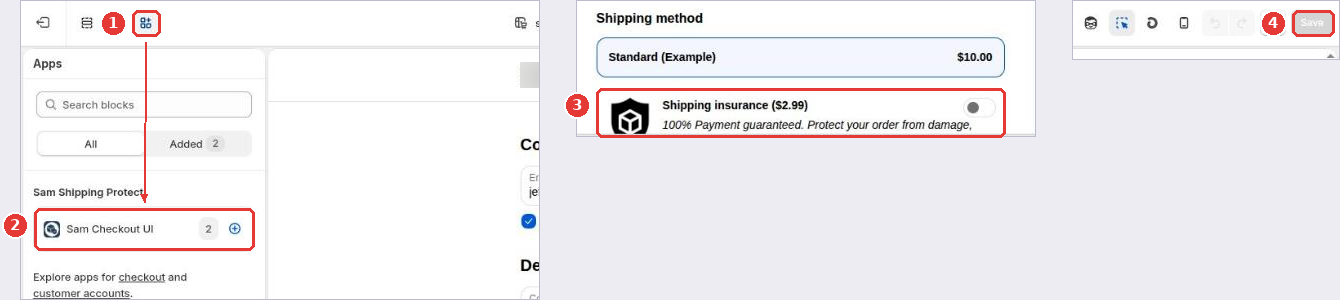
- In Shopify admin, go to Settings > Checkout and click Edit on your checkout configuration.
- In the checkout editor, open the Apps panel (1).
- Add Sam Checkout UI (2). On the checkout page it appears below the shipping methods (3).
- Click Save (4).
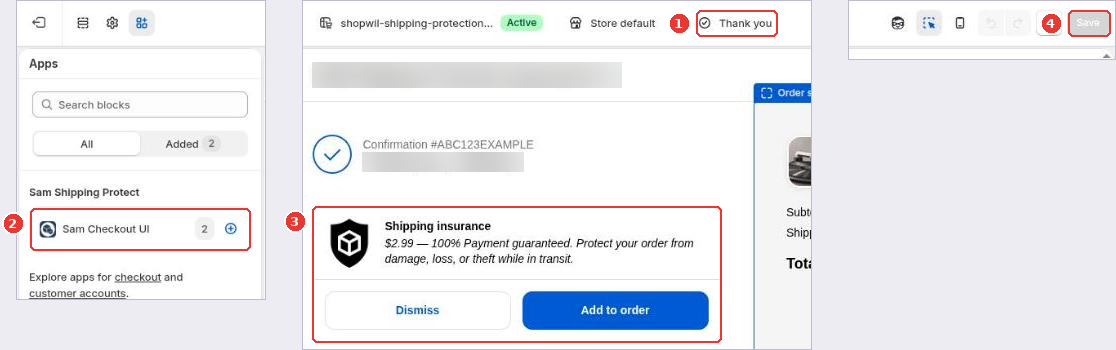
For the thank-you page, switch the page selector to Thank you (1), add Sam Checkout UI (2) where you want the offer (3), and click Save (4).
Thank-you page: allow order edits
When a customer accepts the offer on the thank-you page, the app edits the paid order to add the protection item, and the customer pays the difference on Shopify’s payment page. Editing orders needs a permission you grant once. If Thank You Page Widget shows the banner Permission required to edit orders, click Grant permission and approve it in Shopify. Until then, customers can’t add protection from the thank-you page.
Frequently asked questions
Why don't I see the checkout widget on my store?
Shopify only allows app blocks inside the checkout steps on Shopify Plus stores. On other plans, use the cart widget and the thank-you page widget.
What happens when a customer adds protection on the thank-you page?
The order is already paid, so the app edits the order to add the protection item and gives the customer a link to Shopify's payment page for the extra amount. Nobody is charged automatically.
Still need help?
Our developers answer support themselves. Chat with us or email [email protected].