

Sam Shipping Protection guide · Troubleshooting
Block shipping protection on local pickup orders
In short
Go to Settings > Checkout > Checkout rules, click Add rule and choose "Shipping protection: block on local pickup". Give it a title, set it to Active and save. Customers who choose pickup with protection in the cart then see a message and must remove protection before paying.
Shipping protection covers the trip to the customer. When a customer collects the order in store, there is no shipment to protect, so it is fairer to remove the fee. Sam includes a checkout rule that does this for you.
Step 1: Add the rule
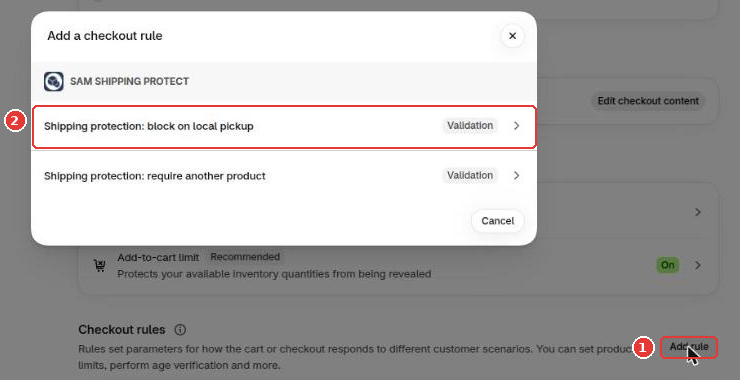
- Go to Settings > Checkout and scroll to Checkout rules.
- Click Add rule (1).
- Choose Shipping protection: block on local pickup (2).
Step 2: Activate it
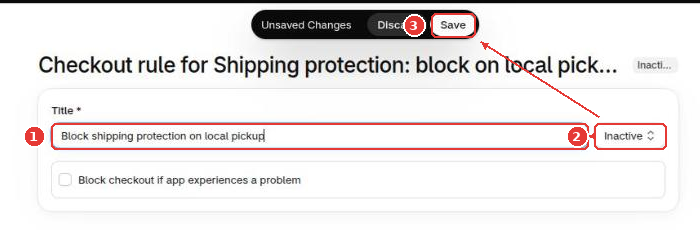
Enter a Title (1), set the status to Active (2) and click Save (3).
Step 3: Test it
Add a product and shipping protection to your cart, go to checkout and choose local pickup. Checkout shows a message asking the customer to remove shipping protection and won’t continue until they do.
The same list has a second rule, Shipping protection: require another product, which stops anyone from buying protection on its own. We recommend turning on both.
Still need help?
Our developers answer support themselves. Chat with us or email [email protected].