

Sam Bundles guide · Offers
Set up quantity breaks
In short
A quantity breaks offer shows bars such as Single, Duo and Trio, each with its own price. Choose the products, set each bar's quantity and price (full price, percentage off, amount off or fixed price), add a free gift or extra products to a bar, then turn on add-ons like badges, a countdown or sticky add to cart. Save to publish.
Quantity breaks reward customers for buying more of the same product. Start from Create new offer > Quantity breaks for the same product (or the free gift version).
Step 1: Products, settings and style
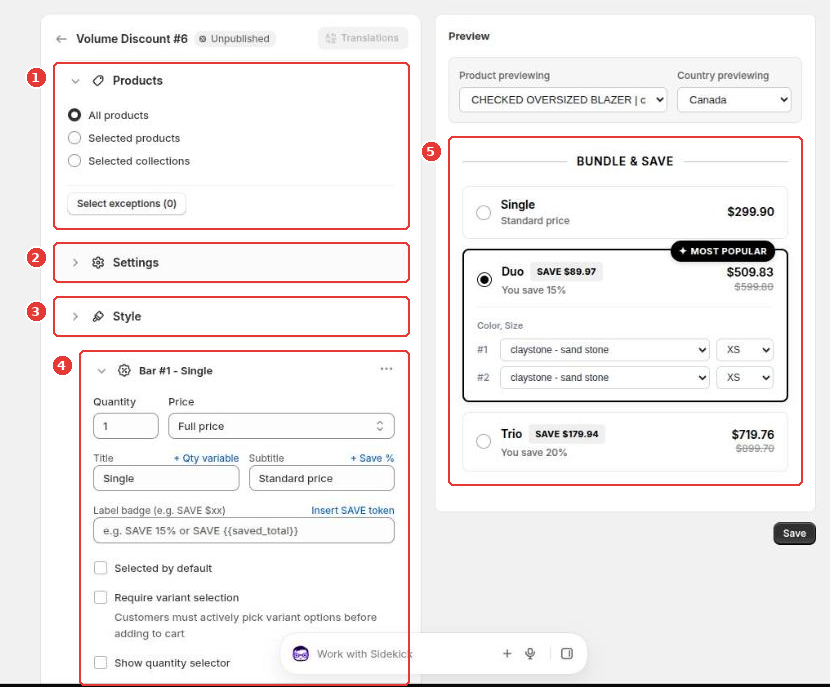
- Products (1): apply the offer to all products, selected products or selected collections. Select exceptions leaves products out.
- Settings (2): names and texts, see below.
- Style (3): colors and typography of the widget.
- The bars (4) are the choices shoppers see. The Preview (5) updates as you edit.
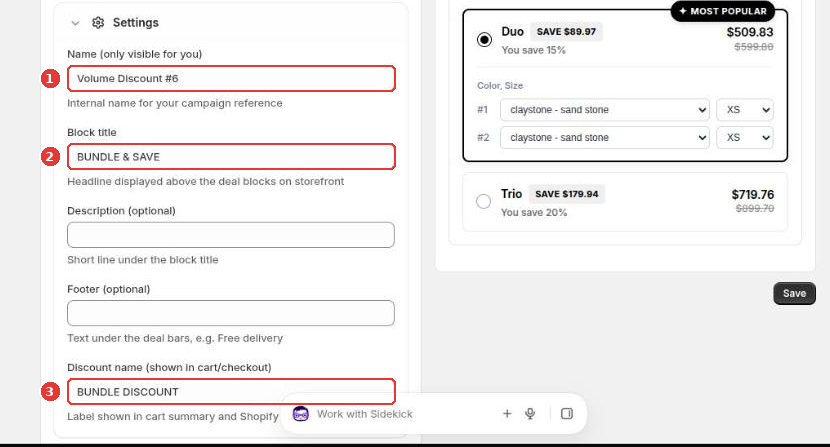
In Settings, set the Name (1), which only you see, the Block title (2) shown above the bars, and the Discount name (3) shown in the cart and at checkout. You can also add a short description and a footer, such as “Free delivery”.
Step 2: Set up each bar
Open a bar to set:
- Quantity and Price: Full price, Percentage off, Amount off or Fixed price.
- Title and Subtitle. Click + Qty variable or + Save % to insert the quantity or the saving.
- Label badge, for example
SAVE {{saved_total}}. - Selected by default, Require variant selection (shoppers must pick options first) and Show quantity selector.
Step 3: Extras and add-ons
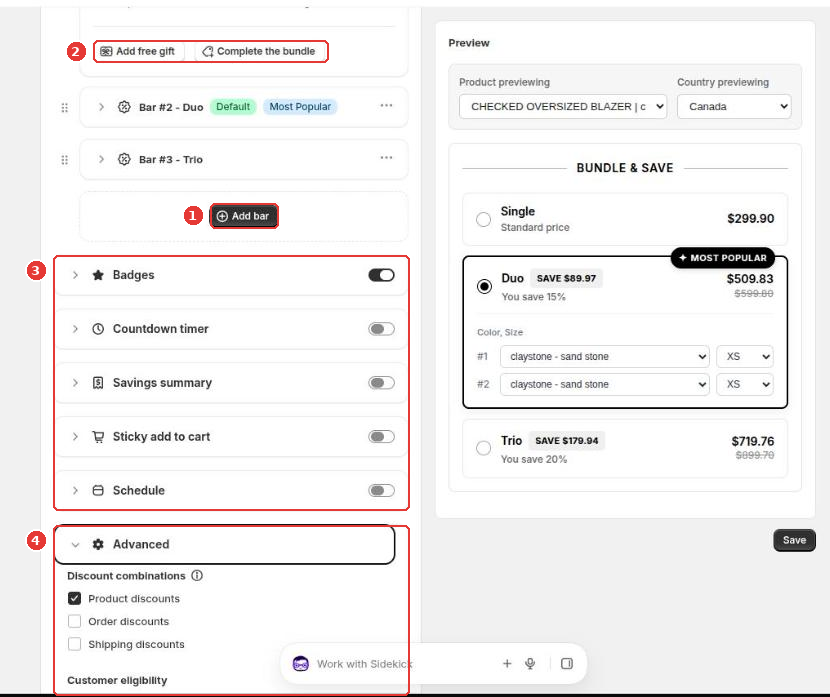
- Add bar (1) adds another quantity level.
- In a bar, Add free gift gives a free product with that bar, and Complete the bundle adds other products to it at the bar’s discount (2).
- Switch on add-ons (3): Badges such as Most Popular, a Countdown timer, a Savings summary, a Sticky add to cart bar on the storefront, and a Schedule.
- Advanced (4) sets discount combinations and customer eligibility. See Schedule, placement and discount combinations.
Click Save to publish the offer.
Frequently asked questions
Do customers need a discount code?
No. The discount is applied automatically in the cart and at checkout when the customer picks a bar.
Can the discount combine with my other discounts?
You choose. Under Advanced, tick which discount classes it can combine with, product, order or shipping discounts.
Still need help?
Our developers answer support themselves. Chat with us or email [email protected].