

Sam Bundles guide · Get started
Create an offer
In short
On the app home, click Create new offer. Pick a brand color, then choose a template, quantity breaks, buy X get Y, quantity breaks with a free gift, mix and match, bundle builder or fixed bundle. The editor opens with a ready-made offer you can change and save. Use the toggle in the Offers list to turn an offer on or off.
Step 1: Your offers
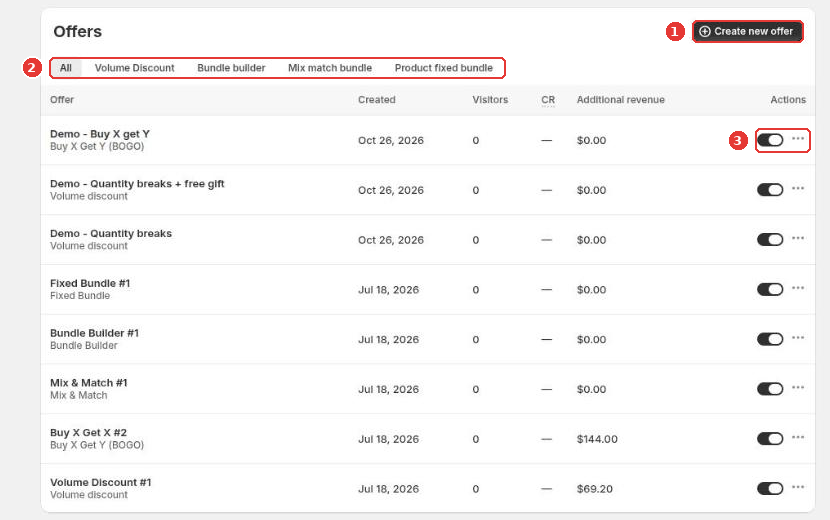
Scroll down the app home to Offers. Click Create new offer (1). The tabs (2) filter by offer type, and each offer has a toggle and a menu (3) to turn it on or off, edit or delete it.
Step 2: Choose a template
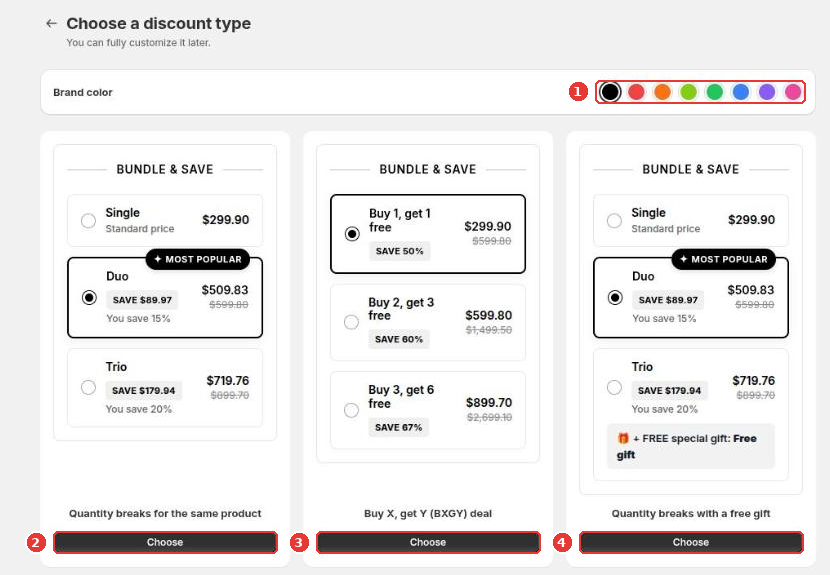
- Pick a Brand color (1). Every template preview updates to it.
- Click Choose on a deal:
- Quantity breaks for the same product (2)
- Buy X, get Y (BXGY) deal (3)
- Quantity breaks with a free gift (4)
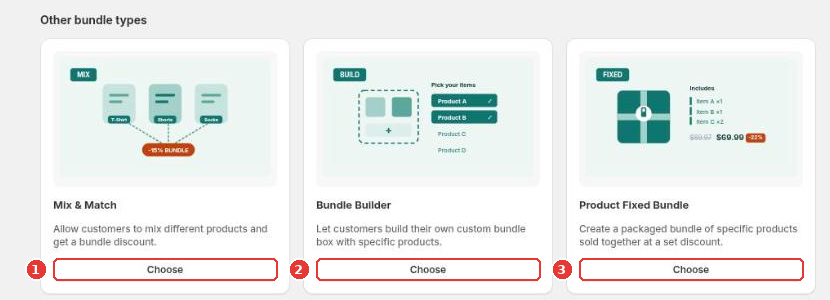
Under Other bundle types you’ll find Mix & Match (1), Bundle Builder (2) and Product Fixed Bundle (3).
Step 3: Edit and save
The editor opens with a ready-made offer. New offers show Unpublished until you click Save, which publishes them. After that, the button at the top switches between Publish and Unpublish. Each type has its own guide:
Still need help?
Our developers answer support themselves. Chat with us or email [email protected].