

Sam FOMO guide · Popups
Set up Recent Sales popups
In short
A Recent Sales notification shows real orders from your store, such as "Emma in London bought Linen Shirt, 2 minutes ago". Write the message with variables like first name, city and product, choose which orders to show (time range, excluded tags, test orders) or upload your own CSV, check the preview and save.
Recent Sales is the classic sales popup: a small card in the corner that shows a real recent order. Open it from Notifications (edit an existing one, or create one).
Step 1: Write the message
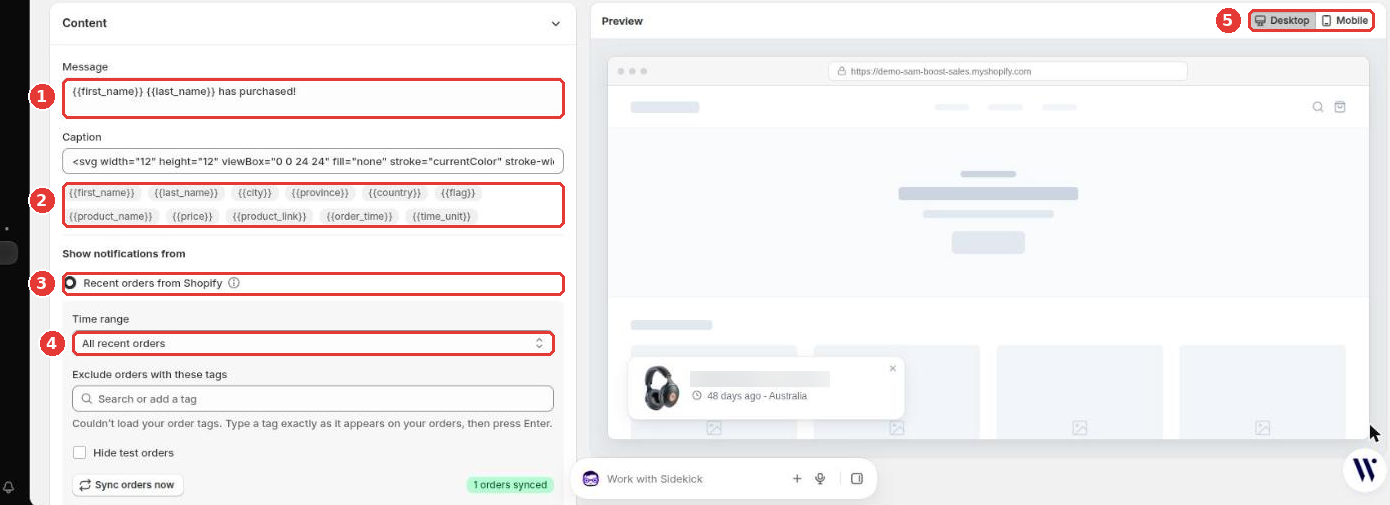
- Edit the Message (1) and Caption. Click a variable (2) to insert it:
{{first_name}},{{last_name}},{{city}},{{province}},{{country}},{{flag}},{{product_name}},{{price}},{{product_link}},{{order_time}}and{{time_unit}}. - Under Show notifications from (3), choose Recent orders from Shopify to use your store’s orders, or Custom CSV file to upload your own list.
- Choose the Time range (4): all recent orders, the last 30 or 7 days, a number of days or a date range.
- Switch the preview between Desktop and Mobile (5) to check both.
Step 2: Choose which orders to leave out
- Exclude orders with these tags: type a tag exactly as it appears on your orders and press Enter, for example
wholesale. - Hide test orders: keeps test orders out of the popup.
- Sync orders now: fetches your latest orders right away. Orders preview shows what the popup will use.
Step 3: Save
Click Save in the bar at the top of the page. Then set the look, position and timing; see Design, placement and timing.
Frequently asked questions
Are the orders real?
Yes, when you use Recent orders from Shopify. The app syncs your paid orders and shows them in the popup. Only use a custom CSV for orders that really happened, for example sales from another channel.
Can I hide the customer's full name?
Yes. The message is yours to write. Leave out the last name variable, or use only the city and country.
Still need help?
Our developers answer support themselves. Chat with us or email [email protected].