

Sam FOMO guide · Popups
Design, placement and timing
In short
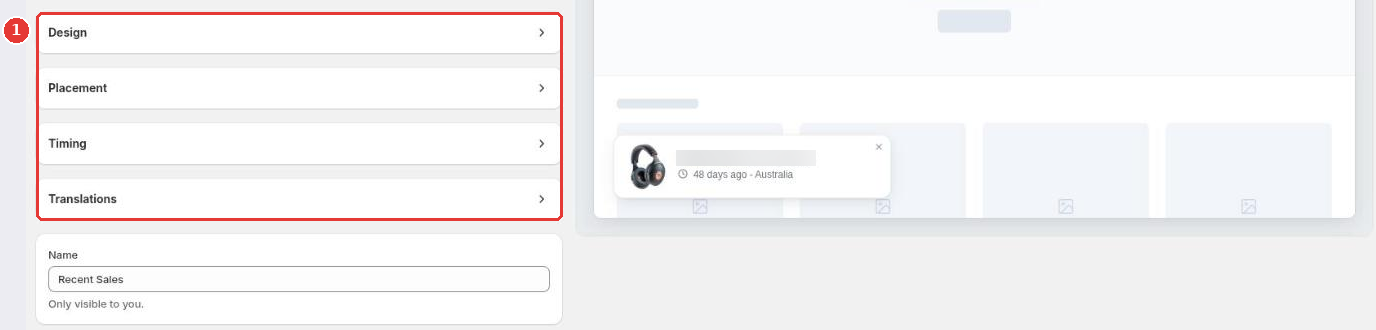
Every notification editor has the same sections below Content. Design picks a template and colors, Placement sets the corner and the pages, Timing sets the delay, display time and gap between popups, and Translations holds the text in other languages. The preview updates as you change them.
Below Content, each notification has four more sections (1): Design, Placement, Timing and Translations. Click one to open it. The preview on the right shows every change before you save.
Design
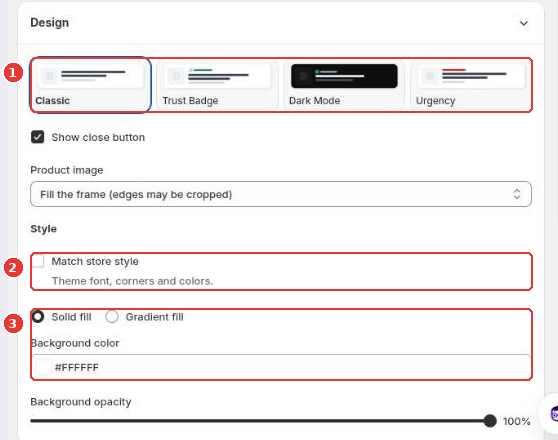
- Pick a template (1): Classic, Trust Badge, Dark Mode or Urgency.
- Tick Match store style (2) to use your theme’s font, corners and colors.
- Or set your own style (3): solid or gradient fill, background color and opacity, text colors. You can also show or hide the close button and choose how the product image fits.
Placement
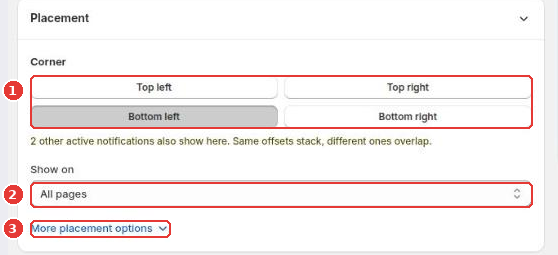
- Choose the Corner (1): top left, top right, bottom left or bottom right. If other notifications use the same corner, the app tells you; with the same offsets they stack.
- Choose where it shows under Show on (2): all pages, the home page, product pages, collection pages, the cart page or specific pages.
- More placement options (3) sets the horizontal and vertical offset, the animation, and a separate position and animation for phones.
Timing and translations
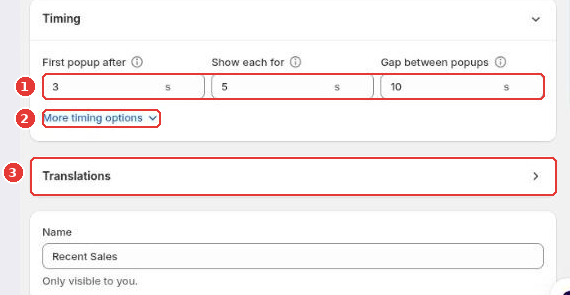
- Set when the first popup appears, how long each one stays and the gap between popups, in seconds (1).
- More timing options (2) randomizes the gaps, limits how many times popups show per page, shows them in random order, or shows each only once.
- Translations (3) holds the text for your other store languages.
Click Save in the bar at the top of the page when you’re done.
Still need help?
Our developers answer support themselves. Chat with us or email [email protected].