

Sam FOMO guide · Get started
Create a notification
In short
Open Notifications and click Create notification. Pick a type from Social proof, Urgency, Cart activity or Promotions and click Add. The editor opens with sensible defaults, so you can save it as is or change the text, design, placement and timing first.
Step 1: Open Notifications
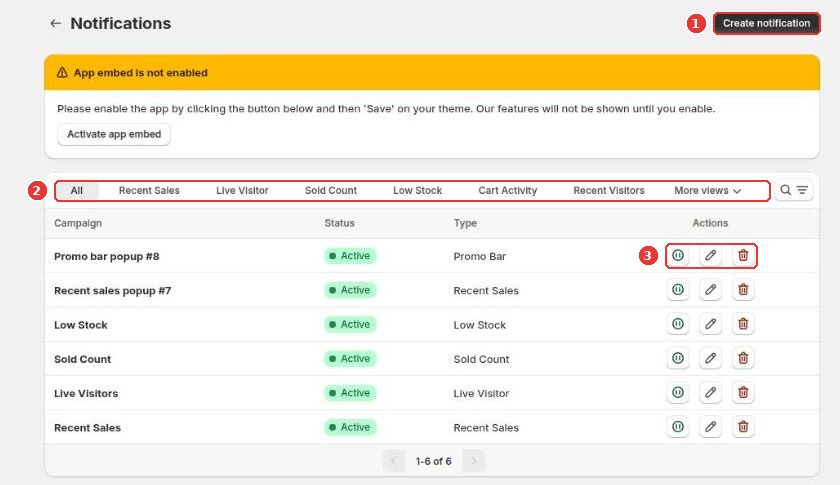
Click Notifications in the app menu. The list shows every notification with its status and type.
- Create notification (1) adds a new one.
- The tabs (2) filter by type.
- The action icons (3) pause, edit or delete a notification.
Step 2: Choose a type
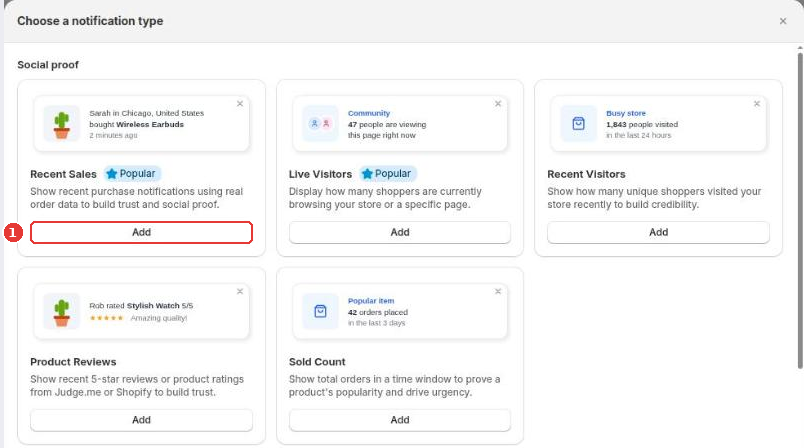
Click Create notification and pick a type. Each card shows a small preview and what it does. Click Add (1) on the one you want.
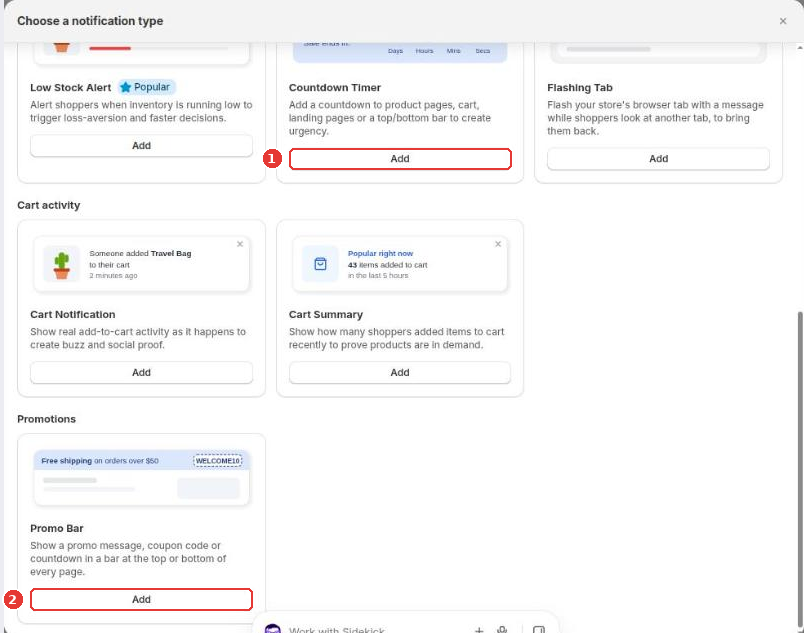
Further down are the urgency types, such as Countdown Timer (1), the cart activity types and the Promo Bar (2).
| Type | What shoppers see |
|---|---|
| Recent Sales | Real recent orders: who bought what, where and when |
| Live Visitors | How many people are viewing the page or the store right now |
| Recent Visitors | How many shoppers visited recently |
| Product Reviews | Recent 5-star reviews or ratings from Judge.me or Shopify |
| Sold Count | Orders for a product in a recent time window |
| Low Stock Alert | How many items are left when stock runs low |
| Countdown Timer | A countdown on product pages, the cart, a landing page or a top/bottom bar |
| Flashing Tab | A message in the browser tab when the shopper switches to another tab |
| Cart Notification | Real add-to-cart activity as it happens |
| Cart Summary | How many items shoppers added to their carts recently |
| Promo Bar | A message, coupon code or countdown in a bar at the top or bottom of every page |
Step 3: Edit and save
The editor opens with ready-to-use defaults. Change what you need, check the preview on the right and click Save in the bar at the top of the page. See Recent Sales and Design, placement and timing for the options.
Still need help?
Our developers answer support themselves. Chat with us or email [email protected].